Project-specific and Prototype Apps
Functionality described here requires a project leader role. For admins without a project leader role it is not available.
A project leader can add or remove project-specifc or prototype apps by going to the Project Apps tab within a project.
Project-specific apps are apps that were developed within the context of a specific project and usually contain intellectual property or specific functionallity that is only relevant for this specific project and - in some cases - must not be shared with other projects. These apps can only be used by their specific projects.
Prototype apps are apps that are still under development and thus haven’t been interrogated by QA or other means of more thorough review. However, in some cases it might already be beneficial to use those apps in the context of real projects which is why they can be added to projects on demand.
Adding Project-specific and Prototype Apps Apps
Project specific or prototype apps don’t automatically appear in the list of available apps that can be added to the app grid on the start page. Therefore, these apps need to be add to this list first before they can be added to the app grid in a second step. To add an app, click on the green + button in the top right corner. A simple form will be displayed.
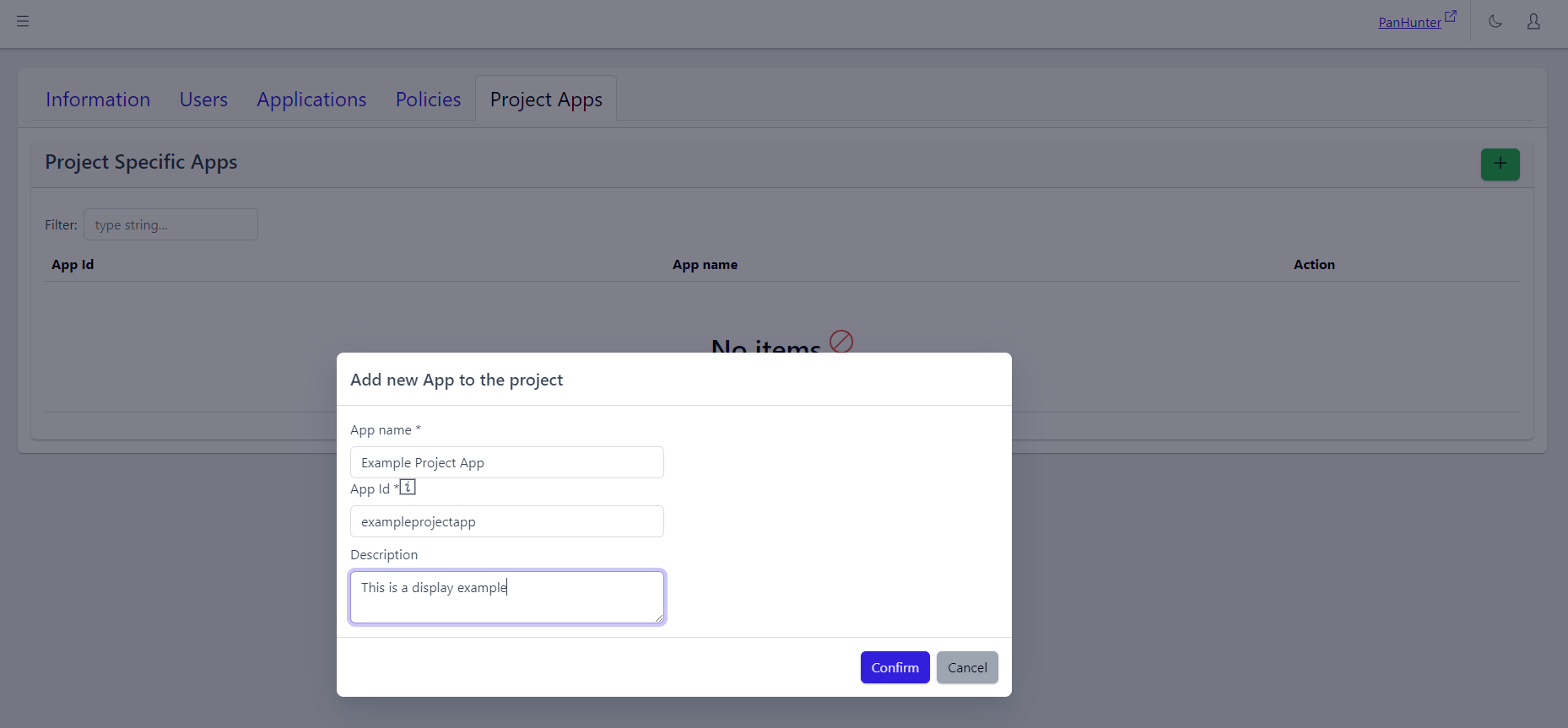
This form must be fill with the specific information for the app desired to be added: App Name, App ID (which is corresponding to the repository name), and optionally a Description.
Eventually, the newly added app needs to be added to the app grid as well, in order to be accessible from the PanHunter start page. The details are explained in the Project Apps article.
If present, the description is displayed when hovering over the app in the Start Page, and when Selecting PanHunter Apps.
Viewing And Deleting Project-specific and Prototype Apps
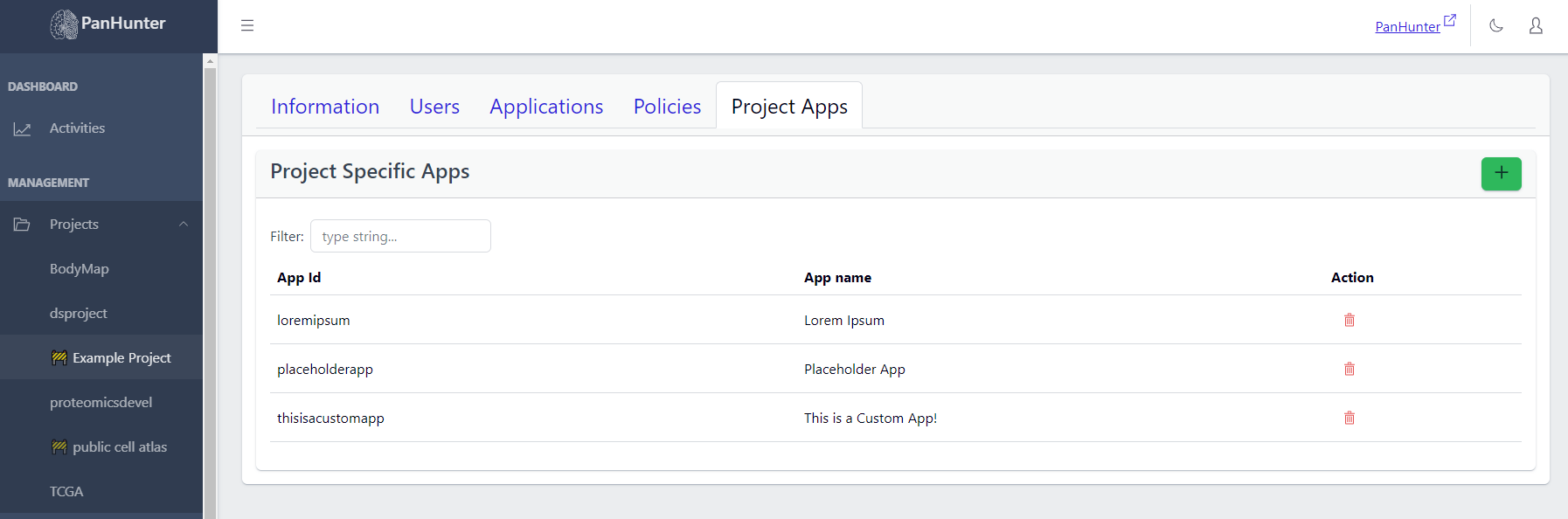
In the Project Apps tab, a list of Project-Specific Apps of this project are displayed, with App Name, App Id, and a Delete button for each app.