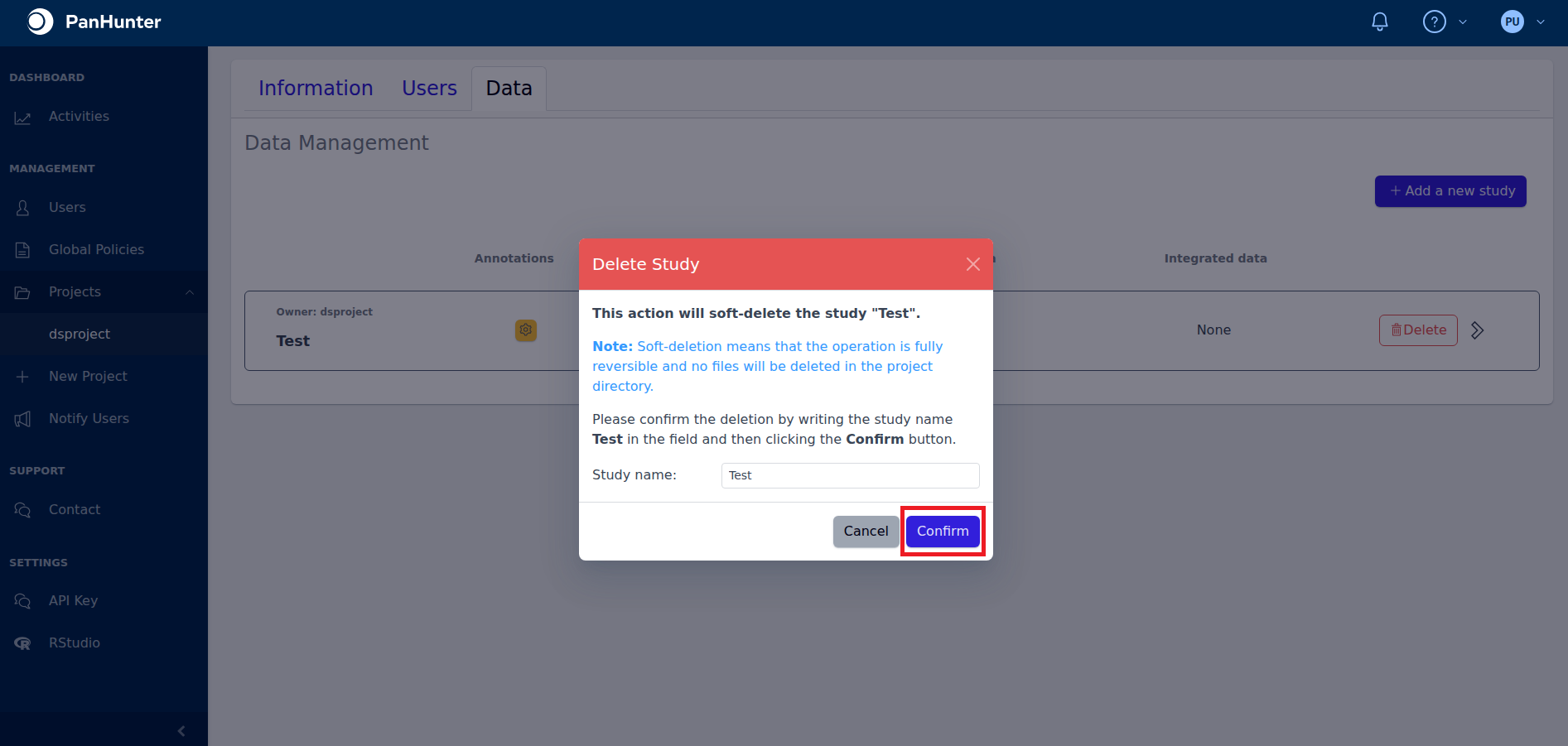
Data Management: Deleting a Study
Instance administrators, data manager and project leaders of a project can see the Data Overview Tab of a project, by going to Projects in the sidebar and clicking on the corresponding project name and then on the Data tab.
The view present all studies of the project. Clicking on Delete opens the Study Deletion Modal.

Regular users can only perform soft-deletion, which is fully reversible and does not delete any files except for the study’s sample table (if possible) from the project directory. The sample table can also be restored.
Instance administrators will see an additional checkbox to trigger hard deletion (not shown in the screenshot). Hard deletion would remove files from the project folder, however, this is only supported for specific protocol and platform types.
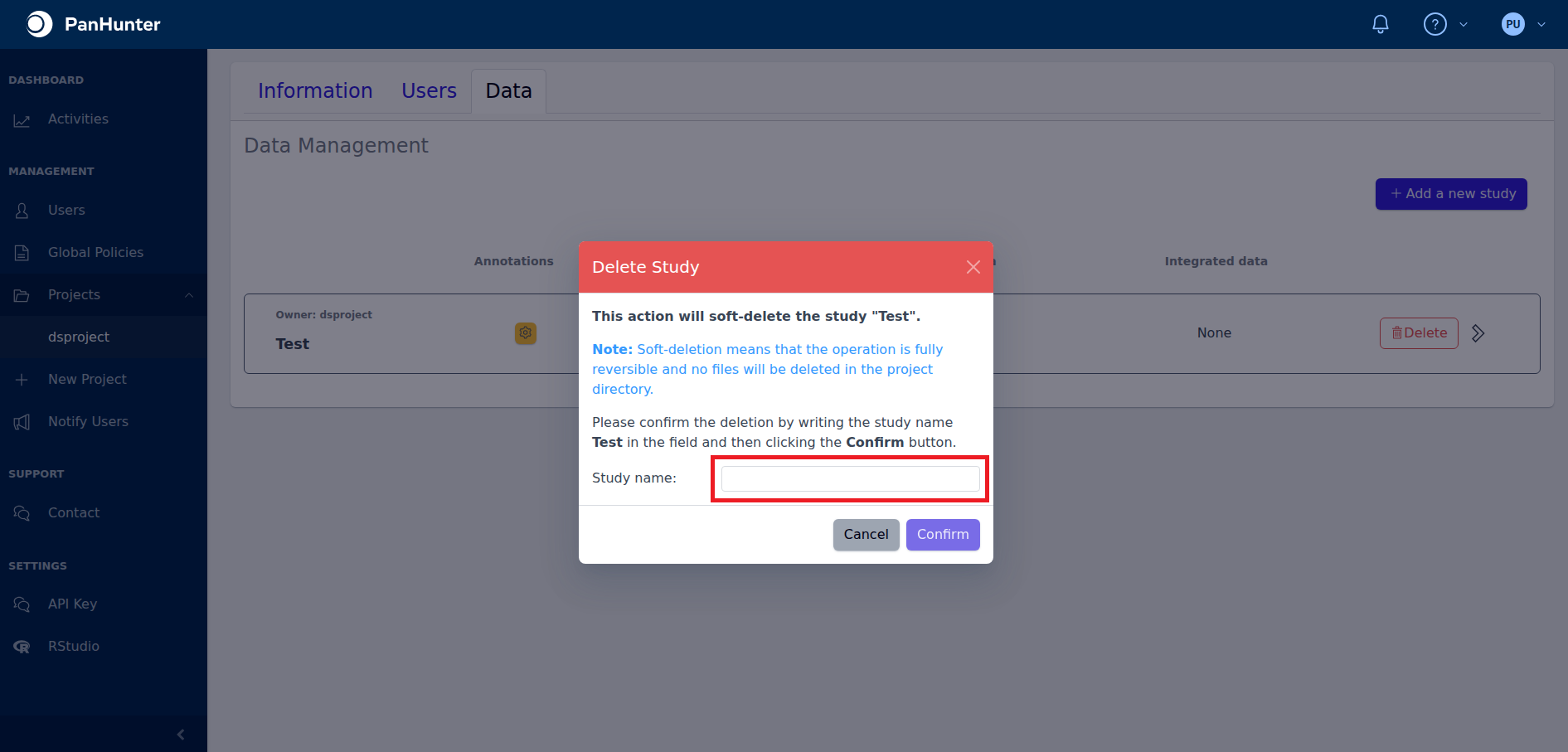
To approve study deletion, first type the name of the study into the empty text box.
Then click Confirm to trigger the deletion.