Save and restore app settings
Overview
The user settings system allows you to save and restore your app configurations across sessions. All apps now follow a consistent pattern: they always start in a clean state, but you can easily restore your previous session settings if needed.
How It Works
Starting an App
When you open any app, it always starts in a clean state with no previous settings loaded. This ensures a consistent and predictable experience every time you launch an app.
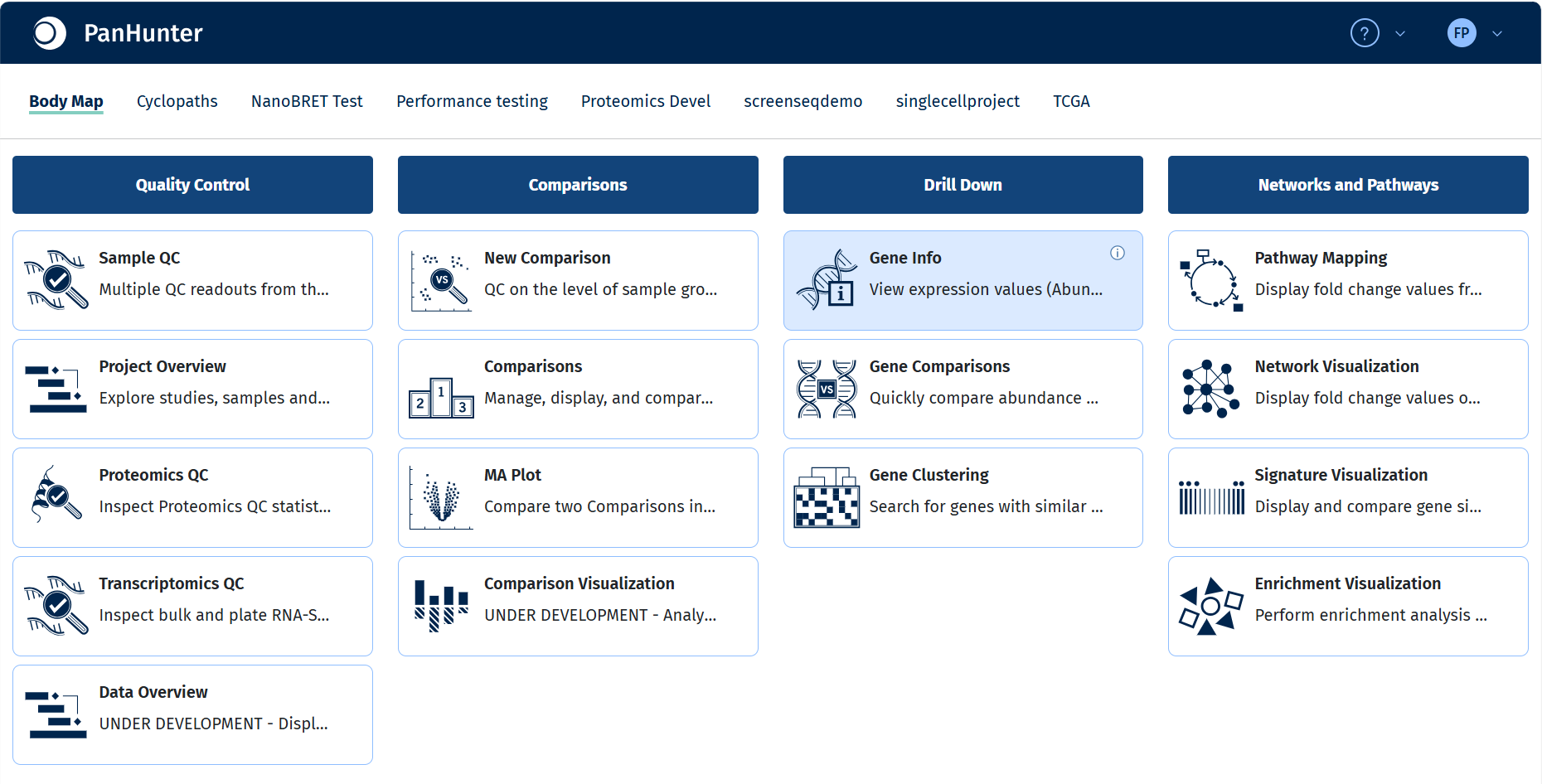
Note: The app start page no longer shows links to choose between clean or previous sessions. All apps start clean by default.
Working in an App
As you work in the app, all your settings are automatically tracked:
- Selected filters
- Chart configurations
- Table sorting preferences
- UI state and selections
Closing an App and Automatic Saving
When you close an app by any of the actions listed below, your current session settings are automatically saved as “previous settings” in the database.
- Closing the browser tab
- Refreshing the page
- Navigating away from the app
- When explicitly restarting the app
Note: After confirming a restart action, the page automatically refreshes after a brief delay to allow the container to restart properly.
Reloading and Restoring Sessions
The Restart Button
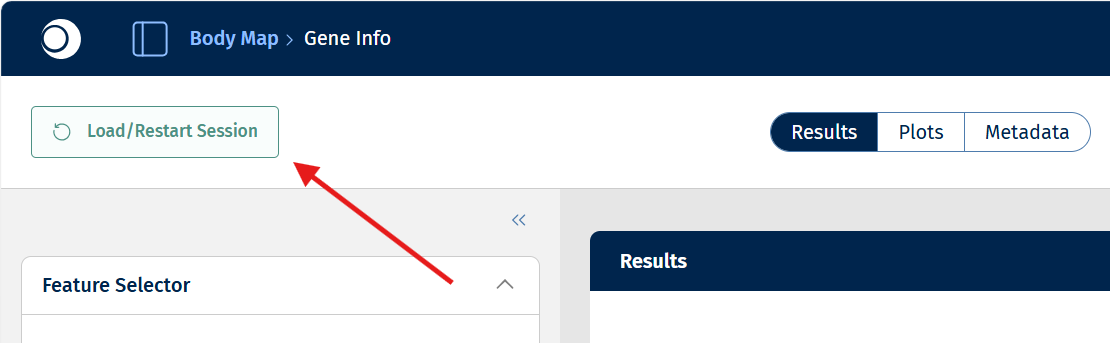
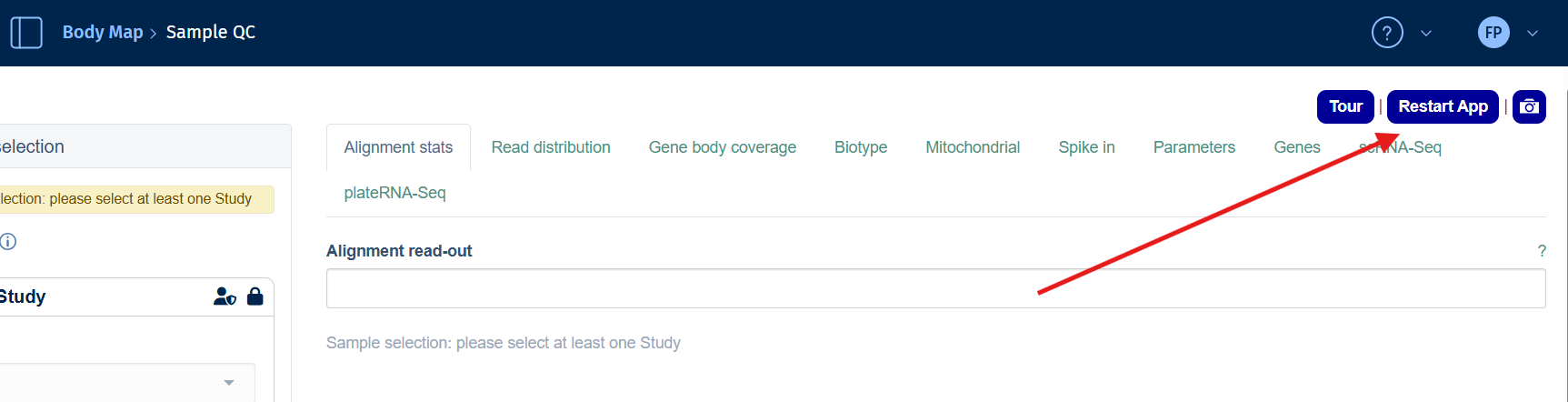
Every app shows a Restart App button at the top of the page that allows you to reload the app with different settings options.
| New App Style | Old App Style |
|---|---|
 |
 |
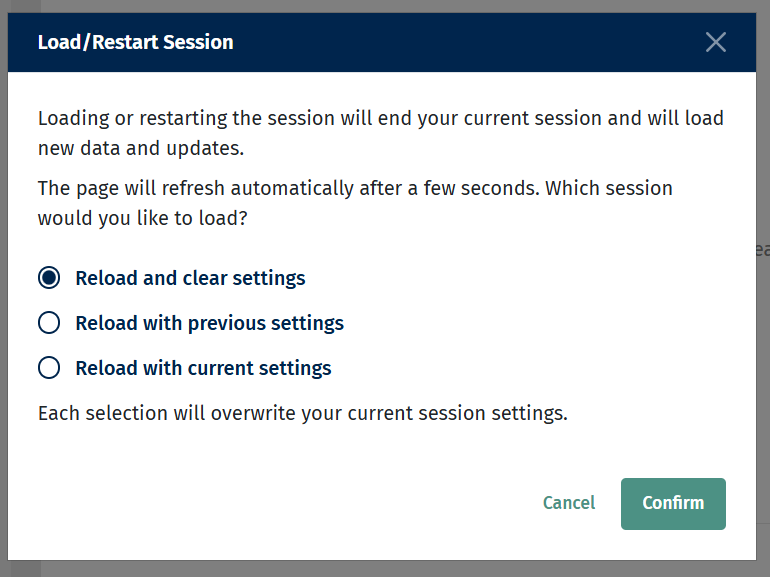
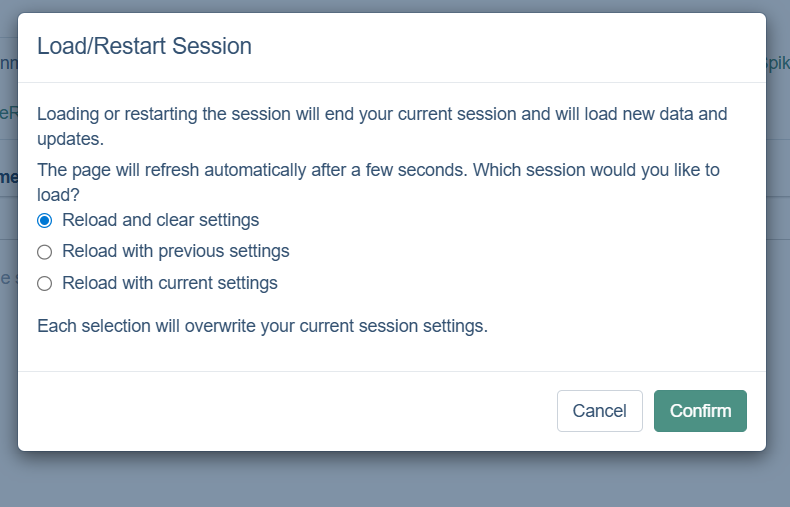
When you click the restart button, you’ll see a dialog with three options:
| New App Style | Old App Style |
|---|---|
 |
 |
Restart Options
1. Reload and Clear Settings (Default)
- Starts a fresh, clean session
- Your current session is saved as “previous settings” before clearing
- Use this when you want to start over from scratch
2. Reload with Previous Settings
- Restores the settings from your last session
- Overwrites your current session with the previously saved settings
- Use this to continue where you left off in your previous session
3. Reload with Current Settings
- Keeps your current session settings
- Useful for reloading data after updates (e.g., sample table changes)
- The app restarts but preserves your current configuration
⚠️ Important: Each option will overwrite your current session settings. Make sure to choose the option that matches your needs.
Common Use Cases
Scenario 1: Daily Fresh Start
You want to start with a clean slate every day:
- Open the app (starts clean automatically)
- Work on your analysis
- Close the app when done
Scenario 2: Continue Previous Work
You want to pick up where you left off:
- Open the app (starts clean)
- Click the Restart App button
- Select Reload with previous settings
- Wait for the page to refresh
- Your previous session is restored
Scenario 3: Reload Data Without Losing View
You updated the sample table and need to reload data while keeping your current view:
- Make your changes in the admin interface
- Return to your app
- Click the Restart App button
- Select Reload with current settings
- Data refreshes while maintaining your configuration
Frequently Asked Questions
Why does the app always start clean?
Starting clean provides a consistent, predictable experience and ensures you’re not accidentally working with outdated settings. You can always restore your previous session if needed.
What happens to my settings if I don’t explicitly save?
Settings are automatically saved when you close the app or navigate away. They’re stored as “previous settings” and can be restored the next time you open the app.
Can I have multiple saved sessions?
Currently, the system stores only your most recent session as “previous settings”. Each time you close the app, it overwrites the previous session data.
What if I close the browser accidentally?
Your settings are automatically saved when you close the browser. Simply reopen the app and use the Restart with previous settings option to restore your work.
What if I refresh the page twice in a row?
If you refresh the page twice in quick succession, you will lose your previous settings. Here’s why:
- First refresh: Your current session is saved as “previous settings” and the current state is cleared
- Second refresh: The empty current session (from after the first refresh) overwrites the “previous settings”
To avoid this, use the Restart App button with the “Reload with previous settings” option instead of refreshing the page multiple times. If you need to reload data or refresh the app state, the restart button provides safer, more controlled options.